> ## Documentation Index
> Fetch the complete documentation index at: https://docs.lancedb.com/llms.txt
> Use this file to discover all available pages before exploring further.
# Manual Deployment on Kubernetes
> Learn how to deploy Geneva on Kubernetes using KubeRay for distributed feature engineering workflows on GKE and EKS.
**Feature Engineering is deployed automatically in LanceDB Enterprise**
For manual installation in self-managed environments, follow the instructions below.
Feature Engineering can be deployed as part of LanceDB Enterprise in managed or self-managed environments. First class support is provided for Azure, AWS, and GCP, including deployment automation via Terraform and Helm.
## Prerequisites
* Kubernetes cluster with KubeRay 1.1+ operator installed
* Ray 2.43+
See below for manual installation instructions for:
* Amazon Web Services (AWS) Elastic Kubernetes Service (EKS)
* Google Cloud Platform (GCP) Google Kubernetes Engine (GKE)
## Basic Kubernetes Setup
Kubernetes resources can be deployed automatically via [Helm](/geneva/deployment/helm/) or manually
via the instructions below.
In the following sections we'll use these variables:
```bash theme={"theme":{"light":"vitesse-light","dark":"catppuccin-mocha"}}
NAMESPACE=lancedb # replace with your actual namespace if different
KSA_NAME=geneva-ray-runner # replace with an identity name
```
### Kubernetes Service Account (KSA)
Inside your Kubernetes cluster, you need a Kubernetes service account which provides the credentials your k8s pods (Ray) run with. Here's how to create your KSA.
#### Create a Kubernetes Service Account (KSA)
```bash theme={"theme":{"light":"vitesse-light","dark":"catppuccin-mocha"}}
kubectl create namespace $NAMESPACE # skip if it already exists
kubectl create serviceaccount $KSA_NAME \
--namespace $NAMESPACE
```
You can verify using:
```bash theme={"theme":{"light":"vitesse-light","dark":"catppuccin-mocha"}}
kubectl get serviceaccounts -n $NAMESPACE $KSA_NAME
```
The Kubernetes service account (KSA) needs RBAC permissions inside the k8s cluster to provision Ray clusters via CRDs.
#### Create a k8s Role
Create a k8s role that can access the Ray CRD operations.
```bash theme={"theme":{"light":"vitesse-light","dark":"catppuccin-mocha"}}
kubectl apply -f - <
#### Geneva Security Requirements
In the following sections we'll use these variables:
```bash theme={"theme":{"light":"vitesse-light","dark":"catppuccin-mocha"}}
NAMESPACE=lancedb # replace with your actual namespace if different
KSA_NAME=geneva-ray-runner # replace with an identity name
PROJECT_ID=... # replace with your google cloud project name
GSA_EMAIL=${KSA_NAME}@${PROJECT_ID}.iam.gserviceaccount.com
LANCEDB_URI=gs://bucket/db # replace with your own path
```
#### Google Service Account (GSA)
To give your k8s workers the ability to read and write from your LanceDB buckets, your KSA needs to be bound to a Google Cloud service account (GSA) with those grants. With this setup, any pod using the KSA will automatically get a token that lets it impersonate the GSA.
Let's set this up:
**Create a Google Cloud Service Account**
```bash theme={"theme":{"light":"vitesse-light","dark":"catppuccin-mocha"}}
gcloud iam service-accounts create ${KSA_NAME} \
--project=${PROJECT_ID} \
--description="Service account for ray workloads in GKE" \
--display-name="Ray Runner GSA"
```
You can verify this using:
```bash theme={"theme":{"light":"vitesse-light","dark":"catppuccin-mocha"}}
gcloud iam service-accounts list --filter="displayName:Ray Runner GSA"
```
> **Warning**: You need `roles/iam.serviceAccountAdmin` or minimally `roles/iam.serviceAccountTokenCreator` rights to run these commands.
Next, you'll need to verify that your KSA is bound to your GSA and has `roles/iam.workloadIdentityUser`:
```bash theme={"theme":{"light":"vitesse-light","dark":"catppuccin-mocha"}}
gcloud iam service-accounts get-iam-policy $GSA_EMAIL \
--project=$PROJECT_ID \
--format="json" | jq '.bindings[] | select(.role=="roles/iam.workloadIdentityUser")'
```
Give your GSA rights to access the LanceDB bucket:
```bash theme={"theme":{"light":"vitesse-light","dark":"catppuccin-mocha"}}
gcloud storage buckets add-iam-policy-binding ${LANCEDB_URI} \
--member="serviceAccount:${KSA_NAME}@${PROJECT_ID}.iam.gserviceaccount.com" \
--role="roles/storage.objectAdmin"
```
#### GKE Workload Identity
A GKE workload identity is required to enable k8s workloads access Google Cloud services securely and without needing to manually manage service account keys. The workload identity is attached to Google Cloud service accounts (GSA) and mapped to a Kubernetes service account (KSA). This feature needs to be enabled on the GKE cluster.
You can confirm that your workers have abilities to read/write to the LanceDB bucket:
```bash theme={"theme":{"light":"vitesse-light","dark":"catppuccin-mocha"}}
kubectl run gcs-test --rm -it --image=google/cloud-sdk:slim \
--serviceaccount=${KSA_NAME} \
-n ${NAMESPACE} \
-- bash
echo "hello" > test.txt
gsutil cp test.txt ${LANCEDB_URI}/demo-check/test-write.txt
```
Confirm the identity inside the pod:
```bash theme={"theme":{"light":"vitesse-light","dark":"catppuccin-mocha"}}
curl -H "Metadata-Flavor: Google" \
http://metadata.google.internal/computeMetadata/v1/instance/service-accounts/default/email
```
## Geneva on AWS EKS
Geneva can be used to provision Ray clusters running in Amazon Web Services (AWS) Elastic Kubernetes Service (EKS).
In the following sections we'll use these variables:
```bash theme={"theme":{"light":"vitesse-light","dark":"catppuccin-mocha"}}
NAMESPACE=lancedb # replace with your actual namespace if different
CLUSTER=geneva # replace with your actual namespace if different
KSA_NAME=geneva-ray-runner # replace with an identity name
```
### EKS Node Groups
EKS allows you to specify templates for virtual machines in "node groups". These allow you to manage and configure resources such as the number of CPUs, number of GPUs, amount of memory, and if instances are spot or regular virtual machines.
You can define your node groups however you want but Geneva uses three specific Kubernetes labels when deploying Ray pods on EKS: `ray-head`, `ray-worker-cpu`, `ray-worker-gpu`
* **Head nodes** are where the Ray dashboard and scheduler run. They should be non-spot instances and should not have processing workloads scheduled on them. Geneva looks for nodes with the `geneva.lancedb.com/ray-head: true` k8s label for this role.
* **CPU Worker nodes** are where distributed processing that does not require GPU should be scheduled. Geneva looks for nodes with the `geneva.lancedb.com/ray-worker-cpu: true` k8s label when these nodes are requested.
* **GPU Worker nodes** are where distributed processing that require GPU should be scheduled. Geneva looks for nodes with the `geneva.lancedb.com/ray-worker-gpu: true` k8s label when these nodes are requested.
### Install KubeRay Operator Using Helm
Geneva requires the KubeRay operator to be installed in your EKS cluster.
```bash theme={"theme":{"light":"vitesse-light","dark":"catppuccin-mocha"}}
helm repo add kuberay https://ray-project.github.io/kuberay-helm/
helm repo update
helm install kuberay-operator kuberay/kuberay-operator -n $NAMESPACE
```
### Install NVIDIA Device Plugin
For GPU support, the NVIDIA device plugin must be installed in your EKS cluster:
```bash theme={"theme":{"light":"vitesse-light","dark":"catppuccin-mocha"}}
curl https://raw.githubusercontent.com/NVIDIA/k8s-device-plugin/v0.17.0/deployments/static/nvidia-device-plugin.yml > nvidia-device-plugin.yml
kubectl apply -f nvidia-device-plugin.yml
```
### Configure Access Control
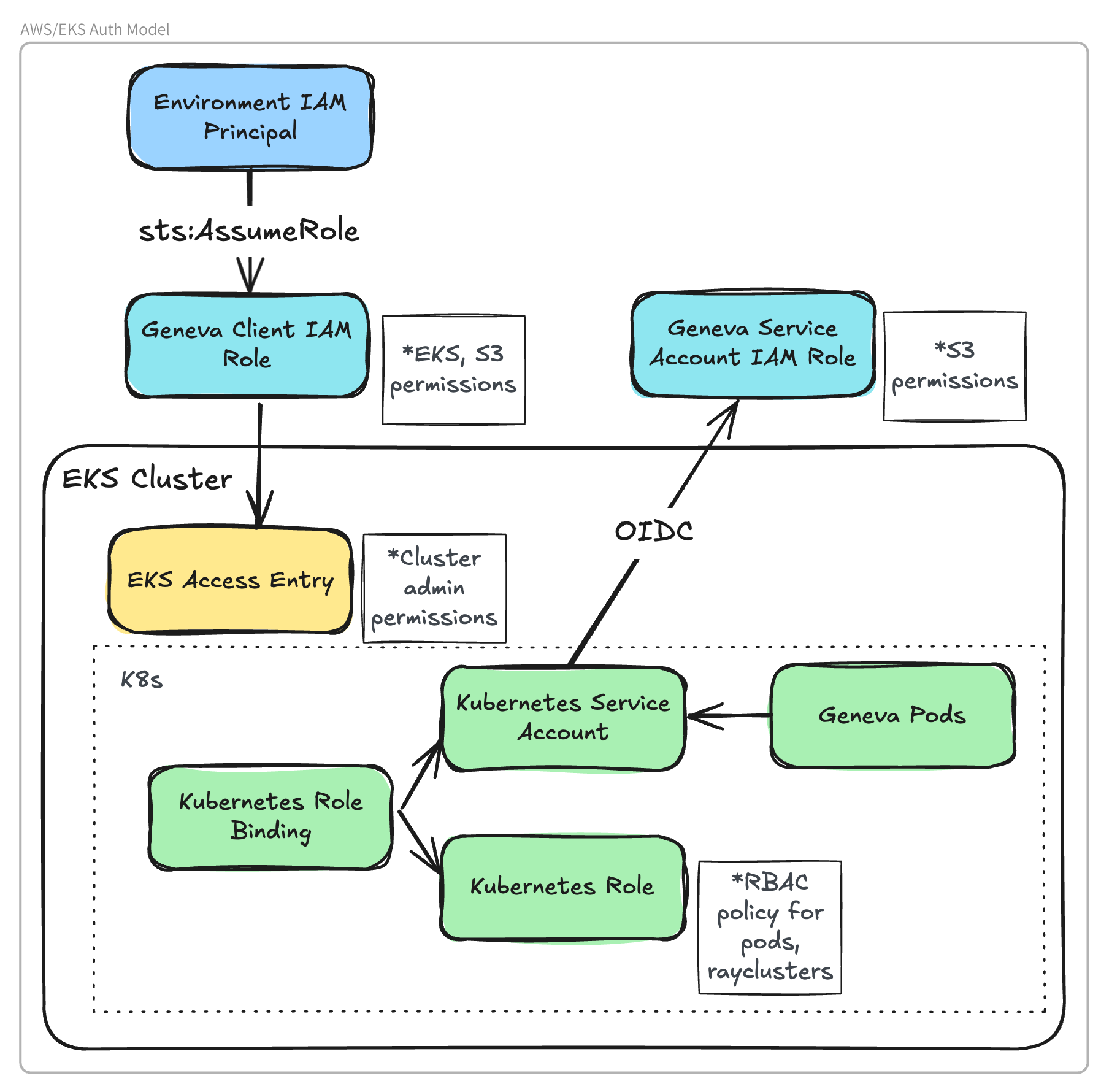 #### Environment IAM Principal
Geneva must be run in an environment with access to [AWS credentials](https://boto3.amazonaws.com/v1/documentation/api/latest/guide/credentials.html) with permissions to `sts:AssumeRole` on the Geneva Client IAM Role.
For example, this could be a laptop with credentials provided by environment variables, or an EC2 instance with credentials provided via Instance Profile.
#### Create IAM Role for Geneva Client
The Geneva Client IAM Role is assumed by the Geneva client to provision the Kuberay cluster and run remote jobs.
This role requires IAM permissions to access the storage bucket and Kubernetes API.
Create an IAM role with the following policy:
```json theme={"theme":{"light":"vitesse-light","dark":"catppuccin-mocha"}}
{
"Version": "2012-10-17",
"Statement": [
{
"Sid": "ClusterAccess",
"Action": [
"eks:DescribeCluster",
"eks:AccessKubernetesApi"
],
"Effect": "Allow",
"Resource": ""
},
{
"Sid": "AllowListBucket",
"Effect": "Allow",
"Action": [
"s3:ListBucket"
],
"Resource": "arn:aws:s3:::"
},
{
"Sid": "AllowAllS3ObjectActions",
"Effect": "Allow",
"Action": [
"s3:GetObject",
"s3:PutObject",
"s3:DeleteObject",
"s3:HeadObject"
],
"Resource": "arn:aws:s3:::/*"
}
]
}
```
This role should also have a trust policy with `sts:AssumeRole` permissions for any principal initiating the Geneva client.
When using Geneva, this role can be specified with the `role_name` RayCluster parameter.
#### Create EKS Access Entry
Create an [EKS access entry](https://docs.aws.amazon.com/eks/latest/userguide/access-entries.html) to allow the Geneva Client Role to access the Kubernetes API for the EKS Cluster.
```bash theme={"theme":{"light":"vitesse-light","dark":"catppuccin-mocha"}}
aws eks create-access-entry --cluster-name $CLUSTER --principal-arn --type STANDARD
aws eks associate-access-policy --cluster-name $CLUSTER --principal-arn --access-scope type=cluster --policy-arn arn:aws:eks::aws:cluster-access-policy/AmazonEKSClusterAdminPolicy
```
#### Create EKS OIDC Provider
Create an OIDC provider for your EKS cluster. This is required to allow Kubernetes Service Accounts (KSA) to assume IAM roles. See [AWS documentation](https://docs.aws.amazon.com/eks/latest/userguide/enable-iam-roles-for-service-accounts.html#_create_oidc_provider_console).
#### Create IAM Role for Service Account
An IAM role is required for the Kubernetes Service Account (KSA) that will be used by the Ray head and worker pods.
This role must have permissions to access the storage bucket and to describe the EKS cluster:
```json theme={"theme":{"light":"vitesse-light","dark":"catppuccin-mocha"}}
{
"Version": "2012-10-17",
"Statement": [
{
"Sid": "ClusterAccess",
"Action": [
"eks:DescribeCluster"
],
"Effect": "Allow",
"Resource": ""
},
{
"Sid": "AllowListBucket",
"Effect": "Allow",
"Action": [
"s3:ListBucket"
],
"Resource": "arn:aws:s3:::"
},
{
"Sid": "AllowAllS3ObjectActions",
"Effect": "Allow",
"Action": [
"s3:GetObject",
"s3:PutObject",
"s3:DeleteObject",
"s3:HeadObject"
],
"Resource": "arn:aws:s3:::/*"
}
]
}
```
In addition, it must have a trust policy allowing the EKS OIDC provider to assume the role from the Kubernetes Service Account:
```json theme={"theme":{"light":"vitesse-light","dark":"catppuccin-mocha"}}
{
"Version": "2012-10-17",
"Statement": [
{
"Effect": "Allow",
"Principal": {
"Federated": ""
},
"Action": "sts:AssumeRoleWithWebIdentity",
"Condition": {
"StringEquals": {
":aud": "sts.amazonaws.com",
":sub": "system:serviceaccount:$NAMESPACE:$KSA_NAME"
}
}
}
]
}
```
#### Associate the IAM Role with the Kubernetes Service Account
Modify the Kubernetes Service Account created in "Basic Kubernetes setup" to associate it with the IAM role created above.
The role ARN is specified using `eks.amazonaws.com/role-arn` annotation:
```bash theme={"theme":{"light":"vitesse-light","dark":"catppuccin-mocha"}}
kubectl annotate serviceaccount "$KSA_NAME" \
-n "$NAMESPACE" \
"eks.amazonaws.com/role-arn=$ROLE_ARN" \
--overwrite
```
### Initialize the Ray Cluster
Initialize the Ray cluster using the node selectors and metadata from above:
```python theme={"theme":{"light":"vitesse-light","dark":"catppuccin-mocha"}}
from geneva.runners.ray._mgr import ray_cluster
from geneva.runners.ray.raycluster import (K8sConfigMethod, _HeadGroupSpec, _WorkerGroupSpec)
head_spec = _HeadGroupSpec(
service_account="geneva-ray-runner",
num_cpus=1,
memory=2048,
node_selector={"geneva.lancedb.com/ray-head": "true"},
)
worker_spec = _WorkerGroupSpec(
name="worker",
min_replicas=1,
service_account="geneva-ray-runner",
num_cpus=2,
memory=4096,
node_selector={"geneva.lancedb.com/ray-worker-cpu": "true"},
)
with ray_cluster(
name="my-ray-cluster",
namespace="lancedb",
cluster_name="geneva",
config_method=K8sConfigMethod.EKS_AUTH,
region="us-east-1",
use_portforwarding=True,
head_group=head_spec,
worker_groups=[worker_spec],
role_name="geneva-client-role",
) as cluster:
table.backfill("embedding")
```
#### Environment IAM Principal
Geneva must be run in an environment with access to [AWS credentials](https://boto3.amazonaws.com/v1/documentation/api/latest/guide/credentials.html) with permissions to `sts:AssumeRole` on the Geneva Client IAM Role.
For example, this could be a laptop with credentials provided by environment variables, or an EC2 instance with credentials provided via Instance Profile.
#### Create IAM Role for Geneva Client
The Geneva Client IAM Role is assumed by the Geneva client to provision the Kuberay cluster and run remote jobs.
This role requires IAM permissions to access the storage bucket and Kubernetes API.
Create an IAM role with the following policy:
```json theme={"theme":{"light":"vitesse-light","dark":"catppuccin-mocha"}}
{
"Version": "2012-10-17",
"Statement": [
{
"Sid": "ClusterAccess",
"Action": [
"eks:DescribeCluster",
"eks:AccessKubernetesApi"
],
"Effect": "Allow",
"Resource": ""
},
{
"Sid": "AllowListBucket",
"Effect": "Allow",
"Action": [
"s3:ListBucket"
],
"Resource": "arn:aws:s3:::"
},
{
"Sid": "AllowAllS3ObjectActions",
"Effect": "Allow",
"Action": [
"s3:GetObject",
"s3:PutObject",
"s3:DeleteObject",
"s3:HeadObject"
],
"Resource": "arn:aws:s3:::/*"
}
]
}
```
This role should also have a trust policy with `sts:AssumeRole` permissions for any principal initiating the Geneva client.
When using Geneva, this role can be specified with the `role_name` RayCluster parameter.
#### Create EKS Access Entry
Create an [EKS access entry](https://docs.aws.amazon.com/eks/latest/userguide/access-entries.html) to allow the Geneva Client Role to access the Kubernetes API for the EKS Cluster.
```bash theme={"theme":{"light":"vitesse-light","dark":"catppuccin-mocha"}}
aws eks create-access-entry --cluster-name $CLUSTER --principal-arn --type STANDARD
aws eks associate-access-policy --cluster-name $CLUSTER --principal-arn --access-scope type=cluster --policy-arn arn:aws:eks::aws:cluster-access-policy/AmazonEKSClusterAdminPolicy
```
#### Create EKS OIDC Provider
Create an OIDC provider for your EKS cluster. This is required to allow Kubernetes Service Accounts (KSA) to assume IAM roles. See [AWS documentation](https://docs.aws.amazon.com/eks/latest/userguide/enable-iam-roles-for-service-accounts.html#_create_oidc_provider_console).
#### Create IAM Role for Service Account
An IAM role is required for the Kubernetes Service Account (KSA) that will be used by the Ray head and worker pods.
This role must have permissions to access the storage bucket and to describe the EKS cluster:
```json theme={"theme":{"light":"vitesse-light","dark":"catppuccin-mocha"}}
{
"Version": "2012-10-17",
"Statement": [
{
"Sid": "ClusterAccess",
"Action": [
"eks:DescribeCluster"
],
"Effect": "Allow",
"Resource": ""
},
{
"Sid": "AllowListBucket",
"Effect": "Allow",
"Action": [
"s3:ListBucket"
],
"Resource": "arn:aws:s3:::"
},
{
"Sid": "AllowAllS3ObjectActions",
"Effect": "Allow",
"Action": [
"s3:GetObject",
"s3:PutObject",
"s3:DeleteObject",
"s3:HeadObject"
],
"Resource": "arn:aws:s3:::/*"
}
]
}
```
In addition, it must have a trust policy allowing the EKS OIDC provider to assume the role from the Kubernetes Service Account:
```json theme={"theme":{"light":"vitesse-light","dark":"catppuccin-mocha"}}
{
"Version": "2012-10-17",
"Statement": [
{
"Effect": "Allow",
"Principal": {
"Federated": ""
},
"Action": "sts:AssumeRoleWithWebIdentity",
"Condition": {
"StringEquals": {
":aud": "sts.amazonaws.com",
":sub": "system:serviceaccount:$NAMESPACE:$KSA_NAME"
}
}
}
]
}
```
#### Associate the IAM Role with the Kubernetes Service Account
Modify the Kubernetes Service Account created in "Basic Kubernetes setup" to associate it with the IAM role created above.
The role ARN is specified using `eks.amazonaws.com/role-arn` annotation:
```bash theme={"theme":{"light":"vitesse-light","dark":"catppuccin-mocha"}}
kubectl annotate serviceaccount "$KSA_NAME" \
-n "$NAMESPACE" \
"eks.amazonaws.com/role-arn=$ROLE_ARN" \
--overwrite
```
### Initialize the Ray Cluster
Initialize the Ray cluster using the node selectors and metadata from above:
```python theme={"theme":{"light":"vitesse-light","dark":"catppuccin-mocha"}}
from geneva.runners.ray._mgr import ray_cluster
from geneva.runners.ray.raycluster import (K8sConfigMethod, _HeadGroupSpec, _WorkerGroupSpec)
head_spec = _HeadGroupSpec(
service_account="geneva-ray-runner",
num_cpus=1,
memory=2048,
node_selector={"geneva.lancedb.com/ray-head": "true"},
)
worker_spec = _WorkerGroupSpec(
name="worker",
min_replicas=1,
service_account="geneva-ray-runner",
num_cpus=2,
memory=4096,
node_selector={"geneva.lancedb.com/ray-worker-cpu": "true"},
)
with ray_cluster(
name="my-ray-cluster",
namespace="lancedb",
cluster_name="geneva",
config_method=K8sConfigMethod.EKS_AUTH,
region="us-east-1",
use_portforwarding=True,
head_group=head_spec,
worker_groups=[worker_spec],
role_name="geneva-client-role",
) as cluster:
table.backfill("embedding")
```